Personal view on methods to enjoy local & personalised AV Media with increased around the globe availability via the Internet, broadband and Wi-Fi. Film, Internet TV, Music, TV, Videoblog etc.
Wednesday, January 17, 2007
Statcounter and Recent Visitor Maps.
I have been utilising StatCounter almost since the very start of my AV Media, Anytime, Anywhere! blog back in early February 2006. I find the visitor information it provides about my blog to be very interesting. (Even though I only make use of the free version)
It's great to add a post to your own blog, then over a few days watch how a particular post increases interest and visits too your blog. For example the peak Wednesday of last week in the fig 1 image above, was the day after my post about the Iphone
Over the last few weeks, using the Google visitor map facilities of StatCounter, I have been enjoying the visual mapping conformation of just where my visitors come from wherever they be around the world.
I have taken special notice of a regular visit to my blog from somewhere in the South Atlantic and I am inquisitive to who this is and wonder, is this an oil or gas rig in the ocean or what exactly?
Monday, January 15, 2007
Using Nokia 770 to Surf & blog on the Internet
I have recently become a little disheartened by all the talk that the Nokia Internet Tablets are not a good for general Internet surfing using the provided Opera 8 Browser. So last Night whilst lying in bed I quickly fired up my Nokia 770, connected to my Wi-Fi network and the Internet and visited a few sites.
Below are some captured Nokia 770 screen grabs to illustrate the ability to open various sites and work within site almost completely normally and as you would expect to on a typical PC.
1a) Google Maps: Location 28027 Madrid, normal view. (Full 800x480 view on Nokia 770)
1b) Google Maps: Location 28027 Madrid, Satellite view. (Full 800x480 view on Nokia 770)
2a) Blogger2: Dashboard.
2b) Blogger2: New post where using Opera 8, I am unable to enter the Title & Link fields.
2c) We are able to clearly see and edit the HTML of the post, although the edit html, compose and preview options do not display correctly? (Like Title and Link options above)
2d) Adding multiple images from Nokia's Internal or external memory works great.
2e) Images uploaded to the draft Blog post.
2f) Saving the draft blog post with the uploaded images.
3) Gmail. (Full 800x480 view on Nokia 770)
4) BBC World. (Full 800x480 view on Nokia 770)
5a) Editing text using the virtual keyboard designed for the stylus. (Earlier screen capture from a few days ago when using old blogger)
5a) Editing text using the Finger & Thumb keyboard.

I am well aware and I do agree that there are real issues using the Opera 8 browser on the Nokia 770 and Nokia N800. With regard to sites with heavy Flash usage, there are definitely problems with the Nokia 770 which uses Flash 6; but even the new Nokia N800 with Flash 7 and more onboard memory, the problems have not been fully resolved.
However to say that the Nokia Internet tablets are not a good Internet Surfing device when on the move is just plain wrong !
Below are some captured Nokia 770 screen grabs to illustrate the ability to open various sites and work within site almost completely normally and as you would expect to on a typical PC.
1a) Google Maps: Location 28027 Madrid, normal view. (Full 800x480 view on Nokia 770)
1b) Google Maps: Location 28027 Madrid, Satellite view. (Full 800x480 view on Nokia 770)
2a) Blogger2: Dashboard.
2b) Blogger2: New post where using Opera 8, I am unable to enter the Title & Link fields.
2c) We are able to clearly see and edit the HTML of the post, although the edit html, compose and preview options do not display correctly? (Like Title and Link options above)
2d) Adding multiple images from Nokia's Internal or external memory works great.
2e) Images uploaded to the draft Blog post.
2f) Saving the draft blog post with the uploaded images.
3) Gmail. (Full 800x480 view on Nokia 770)
4) BBC World. (Full 800x480 view on Nokia 770)
5a) Editing text using the virtual keyboard designed for the stylus. (Earlier screen capture from a few days ago when using old blogger)
5a) Editing text using the Finger & Thumb keyboard.
I am well aware and I do agree that there are real issues using the Opera 8 browser on the Nokia 770 and Nokia N800. With regard to sites with heavy Flash usage, there are definitely problems with the Nokia 770 which uses Flash 6; but even the new Nokia N800 with Flash 7 and more onboard memory, the problems have not been fully resolved.
However to say that the Nokia Internet tablets are not a good Internet Surfing device when on the move is just plain wrong !
Friday, January 12, 2007
How to Translate Canola GUI into your language
I recently heard the call made by the Canola Media player development team, to in their words...... " Guys, if you want to contribute with canola, here's an opportunity! Translate canola into your own language! "
So over that last couple of weeks in my spare time I have learnt from scratch how to go about creating French and Spanish translations of the Canola Media Player Interface.
This was my first attempt at any GUI translation, I was a complete beginner at the start of the task. Hopefully this overview "How to" will provide guidance on how to create the necessary translation files for the Canola GUI into your own mother language. (This method can be used by anyone to provide international translations of various Linux GUI applications)
Follow me, as I gradually understand (step by step?) how to edit, update and save the required translation files.
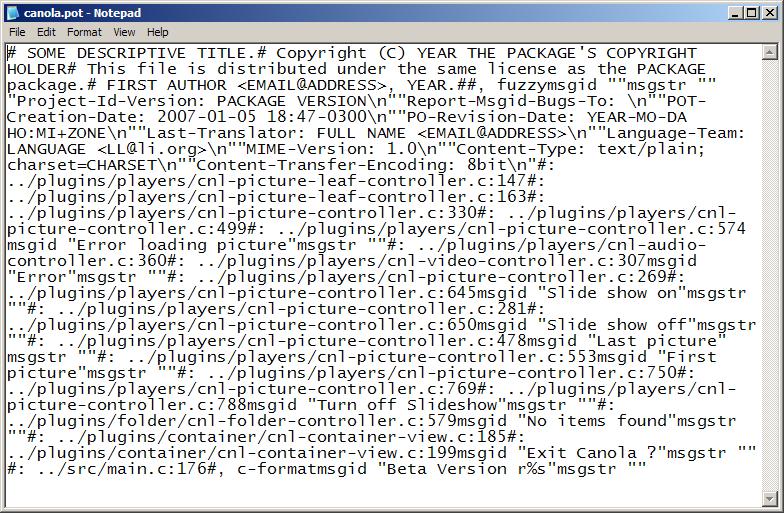
1) First I download the originating Canola i18n files (POT) of the Canola interface from maemo.org then unzipped them where thanks to M$ Windows they were immediately associated with M$ Powerpoint as templates. Grrrrrrrr

2) Because I am normally a windows XP user in the home (and although my Nokia 770 OS is Linux) the first thing I did, was to take a quick look at the content of one of them with the trusty old windows notepad application.
Urrrghh, what's the congealed mess I said to myself.
3) I then fired up firstobject XML Editor to see if it presented the text in a more clear and formatted manner.
That's much better, it's now easy on the eye and I can look at the editing task ahead. Initially I thought that this XML editor was ideal with it's small footprint on the PC (Just an exe and no registry changes etc) I do like it's simplicity and ability to open and tile/work with multiple files at a time for easy cutting and pasting i.e.
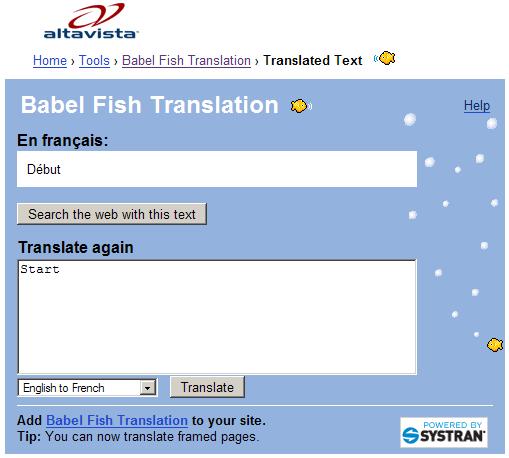
4) I then opened the Babelfish webpage in Firefox my favourite web browser to begin translating the English (msgid) strings into French (msgstr) strings.
I appreciate that is not necessarily the best way to start, but I wanted a quick feel for the task ahead, believing it's better to prepare a quick general translation, then discuss accuracy with a few friends because translating from one mother tongue to another as we all know is fraught with problems.
I calmly and methodically edited all the provided *.pot files saving them with the same extension but adding French in titles accordingly. I had no idea what elements of the file header needed modifying and was not sure how to record and change date/time accurately every time I modified the file. (using the XML editor)
5) I then dived onto the web to find out more about *.pot files and found a useful section in Free/Open source software "A guide to Localisation" which would have been very helpful before the start of my activities. "Gettext: Architectural Overview" and "The POT and PO file format" sections of the guide give an effective overview of Word Internationalisation "i18n" and *.pot and *.po files
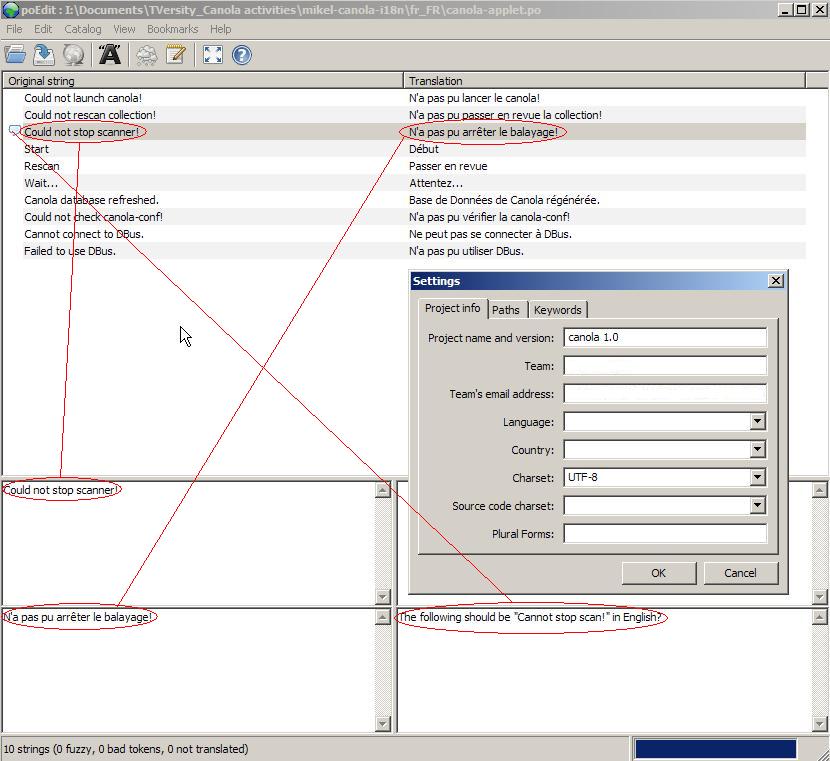
6) OK, Now I am beginning to get it, I downloaded poedit which as I found out is a program specifically designed for creating *.po from *.pot files which runs fine on M$ Windows. I now understand that the *.pot files can be constantly updated as the GUI further develops.
The *.po files understand (with Poedit) how to take the additions/modifications from the *.pot adding them to the *.po automatically (So the person translating only needs to add translation for the added/modified items which are easy to see in the Poedit interface)
Basically you highlight a line in the file and then you are able to edit the translation and make comments etc. (The catalog, settings: window allows for modification to file header records i.e. Team and email values)

7) My understanding of completed canola translations at time of this post are
Brazilian pt_BR
Catalan ca_ES
French fr_FR
German de_DE
Italian it_IT
Polish pl_PL
Spanish es_ES
Where currently the most up-to-date list and downloads of translated *.po and also the originating *.pot can be found in the zip files held here.
8) Please be aware that currently none of the translations will work with Canola 1.0 (beta1) version as its not ready to interface with them. However the more translations that are provided by the Canola user community, the more that will be available when a version of Canola is released that supports the GUI translation *.po files.
9) Of course this "how to" is only an overview for windows users, but I would like to think that everyone who wants a little understanding of GUI translation in Linux will find it useful.
I would like to thank Gustavo Sverzut Barbieri and Hanful for their support, whilst I gained an understanding of what was required to create the Canola GUI and Config translation files.
If you have any comments, questions or suggestions, please add them by commenting against this blog post.
So over that last couple of weeks in my spare time I have learnt from scratch how to go about creating French and Spanish translations of the Canola Media Player Interface.
This was my first attempt at any GUI translation, I was a complete beginner at the start of the task. Hopefully this overview "How to" will provide guidance on how to create the necessary translation files for the Canola GUI into your own mother language. (This method can be used by anyone to provide international translations of various Linux GUI applications)
Follow me, as I gradually understand (step by step?) how to edit, update and save the required translation files.
1) First I download the originating Canola i18n files (POT) of the Canola interface from maemo.org then unzipped them where thanks to M$ Windows they were immediately associated with M$ Powerpoint as templates. Grrrrrrrr

2) Because I am normally a windows XP user in the home (and although my Nokia 770 OS is Linux) the first thing I did, was to take a quick look at the content of one of them with the trusty old windows notepad application.
Urrrghh, what's the congealed mess I said to myself.3) I then fired up firstobject XML Editor to see if it presented the text in a more clear and formatted manner.
That's much better, it's now easy on the eye and I can look at the editing task ahead. Initially I thought that this XML editor was ideal with it's small footprint on the PC (Just an exe and no registry changes etc) I do like it's simplicity and ability to open and tile/work with multiple files at a time for easy cutting and pasting i.e.
4) I then opened the Babelfish webpage in Firefox my favourite web browser to begin translating the English (msgid) strings into French (msgstr) strings.I appreciate that is not necessarily the best way to start, but I wanted a quick feel for the task ahead, believing it's better to prepare a quick general translation, then discuss accuracy with a few friends because translating from one mother tongue to another as we all know is fraught with problems.
I calmly and methodically edited all the provided *.pot files saving them with the same extension but adding French in titles accordingly. I had no idea what elements of the file header needed modifying and was not sure how to record and change date/time accurately every time I modified the file. (using the XML editor)5) I then dived onto the web to find out more about *.pot files and found a useful section in Free/Open source software "A guide to Localisation" which would have been very helpful before the start of my activities. "Gettext: Architectural Overview" and "The POT and PO file format" sections of the guide give an effective overview of Word Internationalisation "i18n" and *.pot and *.po files
6) OK, Now I am beginning to get it, I downloaded poedit which as I found out is a program specifically designed for creating *.po from *.pot files which runs fine on M$ Windows. I now understand that the *.pot files can be constantly updated as the GUI further develops.
The *.po files understand (with Poedit) how to take the additions/modifications from the *.pot adding them to the *.po automatically (So the person translating only needs to add translation for the added/modified items which are easy to see in the Poedit interface)
Basically you highlight a line in the file and then you are able to edit the translation and make comments etc. (The catalog, settings: window allows for modification to file header records i.e. Team and email values)

7) My understanding of completed canola translations at time of this post are
Brazilian pt_BR
Catalan ca_ES
French fr_FR
German de_DE
Italian it_IT
Polish pl_PL
Spanish es_ES
Where currently the most up-to-date list and downloads of translated *.po and also the originating *.pot can be found in the zip files held here.
8) Please be aware that currently none of the translations will work with Canola 1.0 (beta1) version as its not ready to interface with them. However the more translations that are provided by the Canola user community, the more that will be available when a version of Canola is released that supports the GUI translation *.po files.
9) Of course this "how to" is only an overview for windows users, but I would like to think that everyone who wants a little understanding of GUI translation in Linux will find it useful.
I would like to thank Gustavo Sverzut Barbieri and Hanful for their support, whilst I gained an understanding of what was required to create the Canola GUI and Config translation files.
If you have any comments, questions or suggestions, please add them by commenting against this blog post.
Tuesday, January 09, 2007
New Apple iPhone videos in webjay RSS Feed
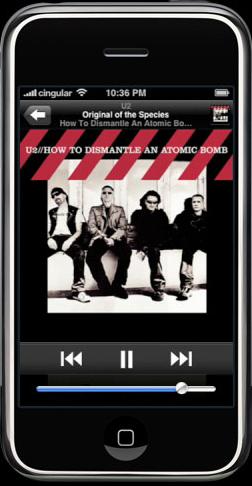
If the apple iPhone is as good as it appears in the promotional videos and images on the new iPhone web page! (Technical Specifications)I thought I would add the mov URL's to an RSS Feed in my webjay account newappleiphone.xml
The RSS Feed and video playback works well on my TV and Philips SL300i via TVersity (Transcoded from mov to mpeg1 for my SL300i but TVersity transcodes to other formats such as wmv for the xbox360)
Alternatively you can view the videos normally on your PC via the new Apple iphone page
Let's hope the iPhone is not totally AV crippled by DRM like the MS Zune and is able to link with Media servers such as TVersity.
I thought I would prepare this post in my blog to illustrate how easily webjay can be used to create an RSS Feed playlist of Internet available AV URL's that can be shared with for example the TVersity Universal Media Player Community.
Here is a low quality video from the BBC of Steve Jobs talking about the iPhone at his 2007 Keynote speech
---Edit---Here is the full iPhone demonstration, Steve Jobs made during his 2007 Keynote speech in QT mov streaming only format!
Sunday, January 07, 2007
Nokia N800 Internet Tablet on it's way

There has been increased Technical interest over the weekend at what appears to be a scoop, ahead of an official announcement of the Nokia N800 Internet Tablet at CES.
I am not going to review and re-edit information from posts made by others to give the impression I know all about the Nokia N800, just provide a few useful links to blog and forum items have found talking about it's comparison for example to the earlier Nokia 770 (with pictures)
Here we go then :-
- John Tokash's Blog (Includes N800 YouTube Videos)
- John Tokash's N800 Pictures
- itT Forum News: The Nokia N800?
- ThoughtFix's Blog
- CARRYPAD Journal
- N800 Pictures, 5th Ave. Productions
- LinuxDevices.com
Thank you to all the guys in North America taking time to provide early Nokia N800 information to all and users of a currently available Internet Tablet such as the Nokia 770. Lets hope the Nokia N800 is available soon in Europe and the rest of the world.
Tuesday, December 26, 2006
TVersity Release 0.9.9.2 (Dec 25, 2006)

A new version of TVersity was released on 25th December 2006 where in most recent beta release itterations, it addresses AV streaming issues to ensure Xbox 360 users move over in their droves to a real Internet and Network capable UPnP Media Server.
The "TVersity Universal Media Player" has a clear roadmap and goal, where if my understanding is correct it's to :-
- Enable all it's user community of numerous network AV playback devices to "just" play any NON DRM'd AV media from "Wherever they want to Wherever they are" without worrying about download, conversion and network media serving issues.
Sunday, December 24, 2006
ThoughtFix and Welcome to your Nokia 770
I have just been reading ThoughtFix's "welcome to your new Nokia 770" Post in his Blog on the uses for a Nokia 770.
Great post ThoughtFix with lots of useful information for new users that you have gained via your personal use of a Nokia 770 with your desire to try out the very latest on what can be achieved.
We really do need more users of the Nokia 770 like yourself, to continue to reduce any mystery surrounding just what the Nokia 770 Internet Tablet can/could be used for via it's underlying Linux based OS.
The Nokia 770 is already a great little Wi-Fi Internet Tablet, which works well in it's primary role as a truly portable internet surfing device. With the further interest and hacking styled developments from the User/Linux/Maemo community in 2007, who knows where and how this fledgling Internet Tablet Market could develop?
Great post ThoughtFix with lots of useful information for new users that you have gained via your personal use of a Nokia 770 with your desire to try out the very latest on what can be achieved.
We really do need more users of the Nokia 770 like yourself, to continue to reduce any mystery surrounding just what the Nokia 770 Internet Tablet can/could be used for via it's underlying Linux based OS.
The Nokia 770 is already a great little Wi-Fi Internet Tablet, which works well in it's primary role as a truly portable internet surfing device. With the further interest and hacking styled developments from the User/Linux/Maemo community in 2007, who knows where and how this fledgling Internet Tablet Market could develop?
Monday, December 18, 2006
Canola, with themes and multi-language support

I thought it useful to post some further images to illustrate current Canola Beta Version r1726:1727M, now installed on my Nokia 770. (Previous blog posts were of an earlier demo version)
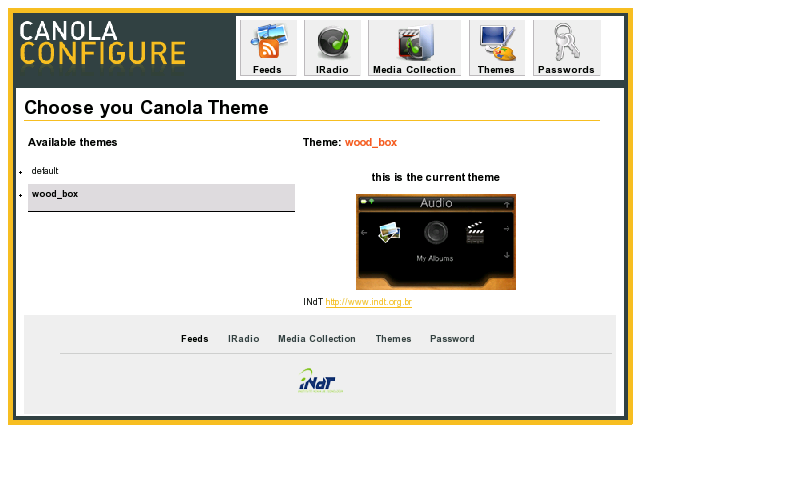
In this post I provide Nokia 770 screen captures which illustrate presentation improvements to Canola Config (Web interface) and the Canola players support for themes; I have therefore provided some images of the new wood_box theme [that can be quickly changed too, from the default theme, via the config interface see 1d)] these images 2..) quickly illustrate the difference to the default theme.
---- Edit 22/12/06 ----
I can heartily recommend downloading the latest high quality Video Tutorial "Canola How to" from Marcelo as there are real hidden gems such as how to quickly navigate from now playing to top menu and back again. Be warned however that it's a hefty 82Mb; or alternatively you can watch the lower quality YouTube version Found Here I believe that my blog post images compliment Marcelo's Video explanation of Canola usage.
---- End Edit 22/12/06 ----
Not highlighted in the images below is that Canola will be capable of multi-language interface support. The minor catch is the Canola team a requesting support from the Canola user community to take three small .pot files to translate Canola UI files to another lanaguge. The files that require translating can be found here
1a) Canola Config, Feeds page (Photocast & Podcast)
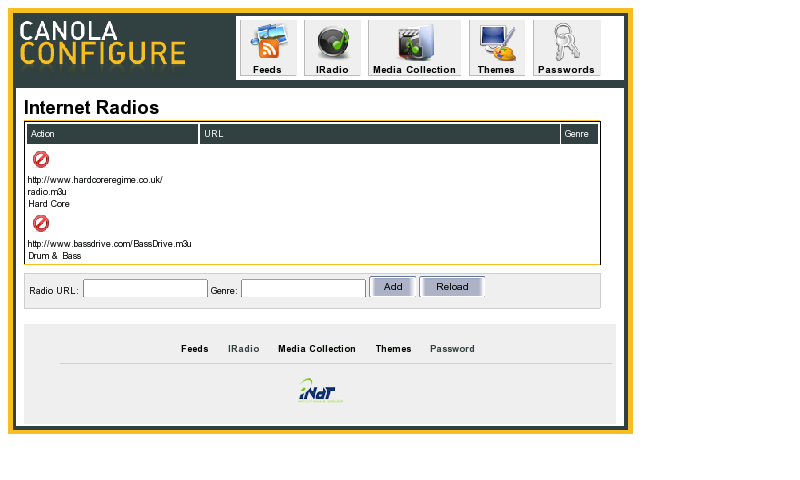
1b) Canola Config, IRadio
1c) Canola Config, Media Collection
1d) Canola Config, Themes
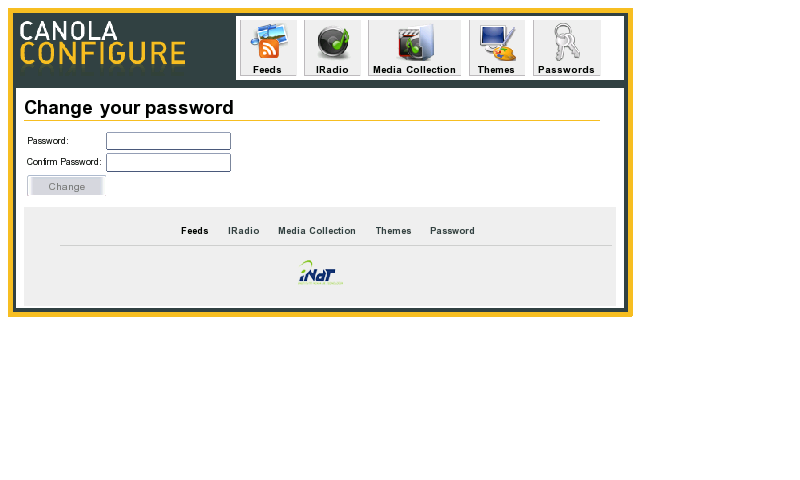
1e) Canola Config, Passwords
2) Canola, Woodbox Theme. (Initial screen, NO Network connection)
2a) Browsing local audio content
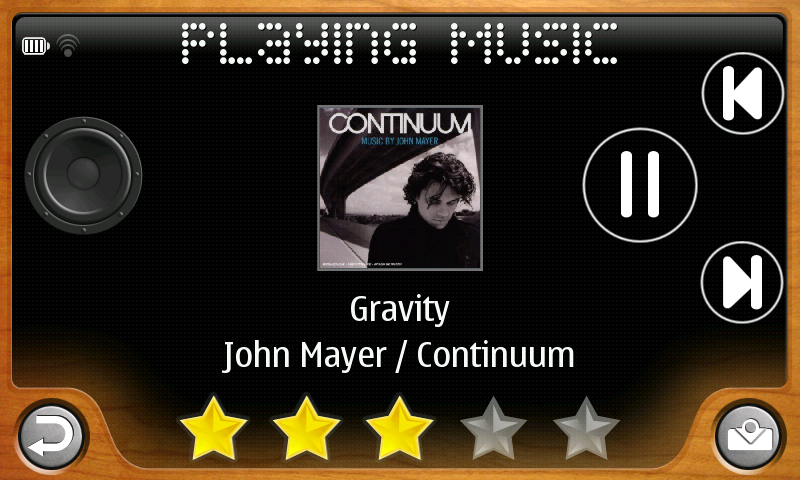
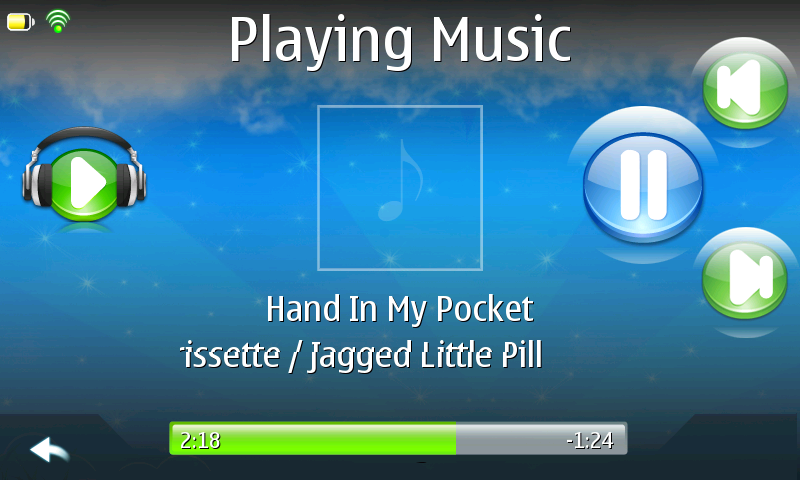
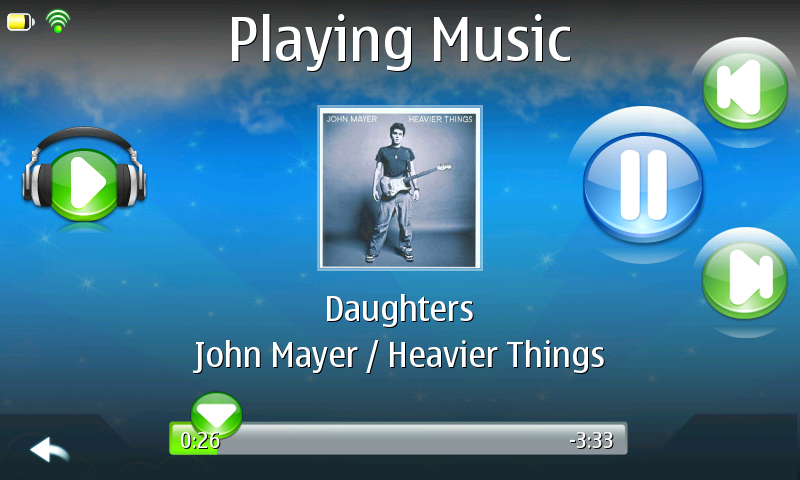
2b) Playing local audio content. (time played, audio level and rating options) 

2c) Playing network served audio content (No rating option currently available in network mode)
2d) Playing network served audio content (switched to volume slider option)
2e) Playing a slide show of local photo content. (Note: icons for pause and return)
2f) Error: When attempting to browse served media when no network connection made.
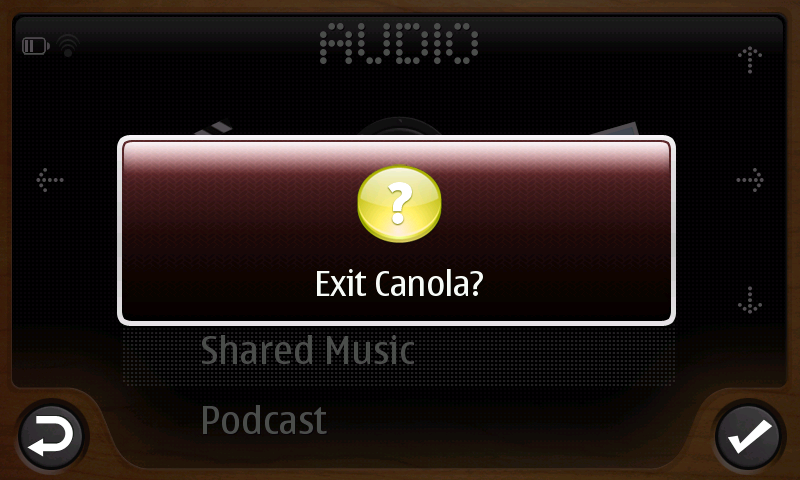
2g) Message ready waiting to close or return to Canola. 
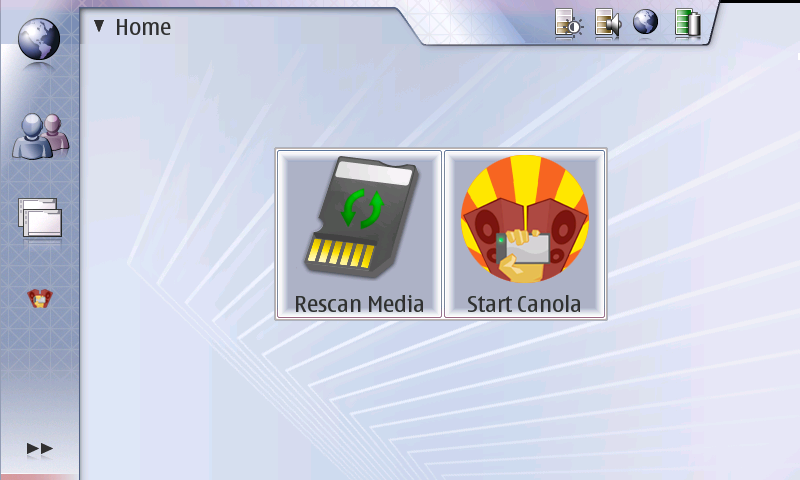
Last and not least (I almost forgot) Canola's Nokia 770 desktop applet (Finger size) for quickly refreshing shared media and/or starting Canola.

If anyone has any questions or comments, don't hesitate to provide feedback as I wish to improve my posts, in an attempt to ensure they are always useful.
Monday, November 27, 2006
The Canola Media Player for the Nokia 770 (2)
Things I forgot to mention in my earlier blog post and/or did not expand on .
1) Install
I manually installed/un-installed from a prior download and then installed the beta of Canola via the application catalogue package list and direct Wi-Fi Internet connection in the application manager. Everything was fine which bodes well for an easy install of Canola for all types of Nokia 770 user.
2) AV Formats
I did not test multiple AV formats at this stage, restricting myself to simple jpg Photos, mp3 Audio and mp4 Video [Video transcoded by the Nokia 770 Media Converter] I tested streaming across my home network, via the Internet and of course playback directly from the Nokia 770 and installed 1GB RS-Multi Media Card.
3) Themes
The current Canola theme is so pleasant and clear that I do not think I will be dashing to change it, anyway my personal opinion is that themes are for users with too much time on their hands. (Not available for test in Beta Version)
4) Win UPnP Servers: Sorted Alphabetically not a complete list by any means. If you would like me to review a Win UPnP Server with Canola, please include a comment.
I did basic testing with the following on my XP SP2 PC were everything generally just worked, but of course this is the beauty of UPnP, each server has it's good and bad points ;)
One real killer benefits of Canola is the ability to utilise two UPnP Servers at the same time! Anyone familiar with UPnP Media serving and playback will be aware of the current restriction of only being able to do one thing at once with a typical UPnP Renderer/Playback Device.
Being able to serve network pictures with one UPnP server whilst playing music with another UPnP server is simply fabulous. (The servers do not need to be on the same device i.e. Linux NAS, PC & MAC) This also means any UPnP server can be selected to take advantage of its particular features, that is not available on another.
Hmmm this has got me thinking the Nokia 770's or their replacement with Canola would make great MS ZUNE Killers?
1) Install
I manually installed/un-installed from a prior download and then installed the beta of Canola via the application catalogue package list and direct Wi-Fi Internet connection in the application manager. Everything was fine which bodes well for an easy install of Canola for all types of Nokia 770 user.
2) AV Formats
I did not test multiple AV formats at this stage, restricting myself to simple jpg Photos, mp3 Audio and mp4 Video [Video transcoded by the Nokia 770 Media Converter] I tested streaming across my home network, via the Internet and of course playback directly from the Nokia 770 and installed 1GB RS-Multi Media Card.
3) Themes
The current Canola theme is so pleasant and clear that I do not think I will be dashing to change it, anyway my personal opinion is that themes are for users with too much time on their hands. (Not available for test in Beta Version)
4) Win UPnP Servers: Sorted Alphabetically not a complete list by any means. If you would like me to review a Win UPnP Server with Canola, please include a comment.
I did basic testing with the following on my XP SP2 PC were everything generally just worked, but of course this is the beauty of UPnP, each server has it's good and bad points ;)
- FUPPES 0.5.4 (Audio only)
- Media Connect 2.0
- Philips Media Manager 3.3.12.0004
- SimpleCenter (Essentially PMM above with improvements)
- TVersity 0.9.8.2a (My favourite)
- Twonky Version 4.01
One real killer benefits of Canola is the ability to utilise two UPnP Servers at the same time! Anyone familiar with UPnP Media serving and playback will be aware of the current restriction of only being able to do one thing at once with a typical UPnP Renderer/Playback Device.
Being able to serve network pictures with one UPnP server whilst playing music with another UPnP server is simply fabulous. (The servers do not need to be on the same device i.e. Linux NAS, PC & MAC) This also means any UPnP server can be selected to take advantage of its particular features, that is not available on another.
Hmmm this has got me thinking the Nokia 770's or their replacement with Canola would make great MS ZUNE Killers?
Saturday, November 25, 2006
The Canola Media Player for the Nokia 770
I have been fortunate to be given an opportunity by Marcelo Oliveira of INdT to try out a DEMO Version of the Canola Media Player which brings a "Windows Media Center/Front Row" style application to the Linux Nokia 770 Internet Tablet."Canola is planned for general release, on the 29th November 2006"
What I particularly like about Canola, apart from "Sleek & Sexy" look below, is the way it attempts to fully address both local and remote aspects of AV Media playback on the Nokia 770 from within the same application. i.e. Local stored content, Podcasts, Internet Radio, Network and UPnP: Audio, Photo & Video Media playback.
The following are a number of screen grabs to illustrate the Canola interface and basic features of the demo version. Canola: Designed from the ground up for finger use, but works equally well with the Stylus.
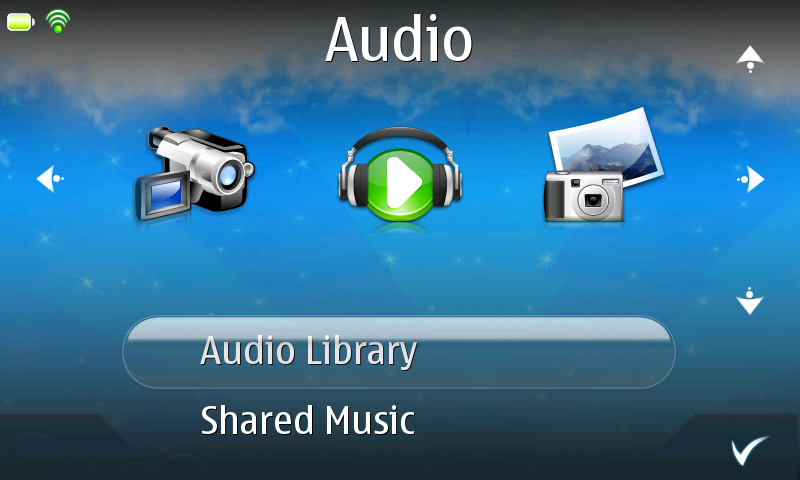
1a) Starting Canola, we go straight into the interface where by default the Audio Icon is in focus.
Audio Menu Options Are :- - Audio Library: Sub-categories are Playlist, Artist, Album, Genre & Songs
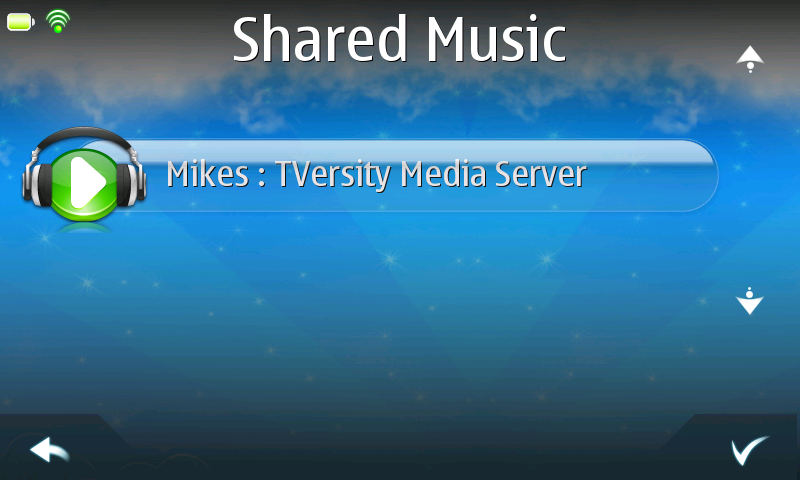
- Shared Music: Sub-categories are dependent what is available on the local Network, in my case Mikes: TVersity Media Server.
- Podcast (See Configure Canola Config web 5a & b)
- IRadio Stations (See Configure Canola web 5a)
Photo Menu Options Are :- - Picture library
- Shared Picture
- Photocast (See Configure Canola web 5a & b)
Video Menu Options Are :- - Video Library
- Shared Video
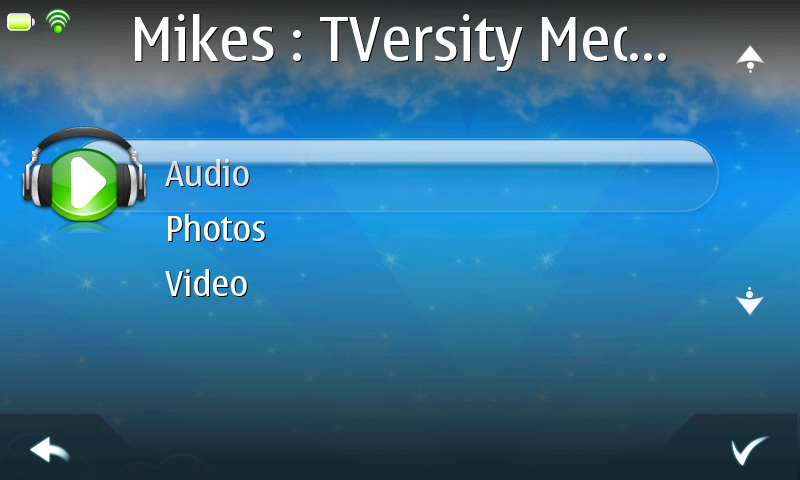
3) Here we have a dilemma in the DEMO VERSION of Canola as I am within the Audio leg of Canola but now via TVersity am presented with all TVersity options of Audio, Photos and Video.
4) Here we can see the Canola options available in the standard Nokia Interface after installation of Canola. We have "Canola" the main application and "Canola configuration" to configure aspects of Canola as it develops.
5a) Here we have opened the Configure Canola web interface. (Note: This is an early preview, version with no graphical interface defined, just pure html + ajax)
DEMO Version Configure Canola Options are :- - Feeds (For Audio and Photo Podcasts)
- IRadio (For Internet Radio Streams)
- Media Collection (Not figured out how to use this yet)
- Password (To protect access to Canola Configuration settings)
6) Here we are streaming an mp3 audio track using TVersity as the UPnP Server, the ID3 tagging information is provided to advise on Track, Artist and Album.
7) Here we are playing an mp3 file held locally on my Nokia's 1Gb MMC card, note how we are able to see the Album Art which has been added to the actual mp3 file and we can FF/REW the playback. (Icon over time played)

Please note that the above is a view of Canola which gives an insight into but cannot be considered as anything more than an early overview. My additional comments etc.
Features I like that are already available in DEMO VERSION :-
- Ability to add/edit personal choice Podcasts and Internet Radio URL's via the Canola configuration page.
- Text scrolls in Canola when it's too long to fit the width of the display area.
- Ability to stream Audio from one UPnP or DAAP/DPAP Server while you browse Photos from local, or another DPAP sharing or UPnP Server. (UPnP Audio from one Server while you look at Photos from other)
- Album Art support to be extended to UPnP Servers that serve the correct information.
- UPnP Server/Browser Icon at highest level, so as to allow for a traverse of UPnP Tree structure as UPnP server intended.
- Playlist manipulation to create, edit and save (Via Canola configuration)
- UPnP Controller capabilities to remotely control actual playback on another device.
Subscribe to:
Posts (Atom)